Most calculator guides tell you which keys to press. This one gives you the calculator. The calculator next to this text (or behind the Calculator tab at the bottom of your phone screen) is our own working replica of the BA II Plus: the same keys, the same second functions, the same worksheets and the same habits, down to the little ◁ that appears when a value is entered. Click its keys, type on your keyboard, or press Play on any of the grey boxes and watch each keystroke happen.
The guide follows the order you need things in an exam: set the calculator up, learn to clear it, use it as an ordinary calculator, then work through every financial worksheet. Each section explains why the calculator behaves as it does, because once you see the logic you stop making the mistakes that cost marks.
How the calculator thinks: three layers
Every key does up to two jobs, and many jobs open a worksheet:
- The primary function is printed on the key: digits, operations, the five time-value keys (N, I/Y, PV, PMT, FV), CPT and ENTER.
- The second function is printed above the key, in yellow here. Press 2ND first, then the key. The small 2nd indicator lights up so you know the next key will use its second job. Pressing 2ND again cancels it.
- Worksheets are small forms inside the calculator: cash flows, bonds, amortisation, statistics, depreciation, dates and more. You open one, move through its fields with ↑ and ↓, type a number and press ENTER to store it, or press CPT to compute the field you are on. 2ND QUIT always takes you back to the ordinary calculator.
Press Key map under the calculator to colour the keys by job. Blue keys are time value of money, green are cash flows, yellow-rimmed number keys open worksheets with 2ND, orange keys are memory and purple keys are arithmetic.
The display tells you more than the number. The indicators along the top say what the next key will do: COMPUTE means CPT will solve the field on screen, ENTER means the field accepts a typed value, SET means 2ND SET will switch a setting, and ↑↓ means there are more fields above or below. BGN stays lit whenever payments are set to the start of each period, which is the single most common hidden cause of wrong answers.
The exam setup: four settings, two minutes
A new or reset calculator shows two decimals, works in chain order (it calculates strictly left to right) and may assume 12 payments a year. None of that suits the exam. Make these changes once; the calculator remembers them when it is switched off.
1. Show nine decimals (floating)
Two decimals hide information. If you compute a rate of 6.4878% and the screen shows 6.49, then reuse 6.49, every later step is slightly off. Setting DEC = 9 makes the display float: it shows as many decimals as fit, up to ten digits in total. The calculator keeps 13 digits internally either way.
You will see DEC = 9 while you are in the format worksheet, then 0. with no fixed decimals.
2. Switch from chain (Chn) to algebraic order (AOS)
In chain mode, 3 + 2 × 4 = 20, because the calculator adds first. In AOS mode it gives 11, the answer you learned at school, because multiplication comes first. The CFA exams are written with normal algebra in mind, so AOS saves you from typing brackets you would otherwise need. The setting sits four steps down the FORMAT worksheet.
Chain mode gives 20.
After switching to AOS, the same keys give 11.
3. One payment per year (P/Y = 1)
P/Y is the number of payments per year. When P/Y is 12, the calculator silently divides whatever you type into I/Y by 12. That is convenient for a mortgage and dangerous for everything else. With P/Y = 1, what you type is what you get: for monthly problems you divide the annual rate by 12 and multiply the years by 12 yourself, so you always see the per-period numbers. Setting P/Y also sets C/Y (compounding periods per year) to the same value.
4. Check END mode
The BGN worksheet shows END when payments happen at the end of each period (most loans, bonds and savings plans) and BGN for the beginning (leases, rent, insurance premiums, annuities due). It should normally read END. If the screen shows BGN, press 2ND SET to switch back.
The screen shows END. The BGN indicator in the top right is off.
Reset: the clean slate
2ND RESET ENTER restores the factory state: two decimals, chain mode, P/Y = 12 on older units, and all worksheets and memories cleared. Reset when the calculator behaves strangely and you cannot see why, then redo the four settings. In this replica, the Exam settings button under the calculator does the reset and all four settings in one go.
RST and 0 confirm the reset. The decimals and the order of operations are back to factory values, so redo your settings.
Clearing: five different "clears" and what each one removes
Most calculator errors in exams come from leftover values, not wrong formulas. The calculator remembers what you typed into worksheets until you clear them, even after it switches itself off (it powers down after about five minutes without a key press).
| Keys | What it clears | When to use it |
|---|---|---|
| → | the last digit you typed | fixing a typo mid-number |
| CE/C | the number being typed; press again to clear the whole calculation | a wrong entry, or an error message |
| 2ND QUIT | leaves any worksheet; clears pending arithmetic | going back to normal calculations |
| 2ND CLR TVM | N, I/Y, PV, PMT and FV (not P/Y or BGN) | before every time-value question |
| 2ND CLR WORK | the worksheet you are in | before a new cash-flow, statistics or bond problem |
You meant 1,234.56: delete two digits, type 56, and 3 × 1,234.56 = 3,703.68.
CE/C threw away the 3 but kept "2 ×", so the answer is 8.
After 2ND CLR TVM, recalling N shows 0.
The calculator as a calculator
Powers, roots and the y-to-the-x key
Compounding is raising a number to a power. yˣ does it: type the base, press yˣ, type the power, press =. Roots are powers too: the fifth root of a number is that number to the power 1/5, so you press 1/x on the 5 before =. This is how you turn a five-year growth factor into an annual rate.
1.469328077: the money grows by about 46.9%.
1.08 again, so the annual rate is 8%.
Percentages
The % key divides by 100, but after + or − it does something more useful: it takes that percent of the number before it. So 250 + 8 % = adds 8% to 250.
270.
Repeating a calculation with the constant (K)
2ND K freezes an operation so that each press of = repeats it. Press 1000 × 2ND K 1.06 = and every further = multiplies by 1.06 again: a compounding table, one year per press.
1,060 after the first =, 1,123.6 after the second and 1,191.016 after the third.
Memories and the last answer
There are ten memories, M0 to M9. STO 1 stores the screen in M1, RCL 1 brings it back, and STO + 1 adds the screen to whatever M1 already holds (−, × and ÷ work the same way). Memory arithmetic is the fastest way to add up present values without writing anything down. 2ND ANS recalls the last result, so you can reuse it inside a new calculation.
535.7952705: the present value of 100, 200 and 300 received in years 1, 2 and 3 at 5%.
Logs, exponentials and counting
- eˣ (2ND LN) gives continuous compounding: $1 at 5% for three years grows to e^(0.05 × 3).
- LN turns a growth factor into a continuously compounded return: a 50% gain is ln 1.5 = 0.405 as a continuous rate.
- nCr and nPr (2ND + and 2ND −) count combinations and permutations; x! (2ND ×) is the factorial. They appear in Level I probability questions.
1.161834243.
120.
Time value of money: the five keys
Every time-value question has five numbers: N (number of periods), I/Y (interest rate per period, as a percentage), PV (present value), PMT (the level payment each period) and FV (future value). Give the calculator any four and it finds the fifth. To store a value, type it and press its key. To solve, press CPT and then the key you want.
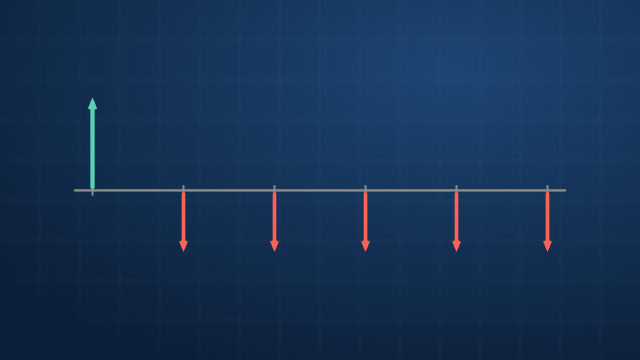
The only real rule is the one in the diagram at the top: cash you receive is positive, cash you pay is negative. The calculator solves an equation that says all the cash flows, valued at the same moment, add up to zero. If you deposit money (negative) you must eventually get money back (positive). If every value has the same sign, there is no rate that balances them, and the calculator shows Error 5.
Future value of a lump sum
You invest 1,000 today at 6% a year for five years. You pay 1,000, so PV is negative. There are no payments in between, so PMT is 0.
FV = 1,338.225578. The answer is positive because you receive it.
Present value of a future amount
What is 5,000 received in ten years worth today at 7%? Store FV as positive (you receive it) and solve PV: the answer is negative, the amount you would pay today.
PV = −2,541.746461.
A monthly loan payment (and why we keep P/Y = 1)
A 300,000 mortgage for 30 years at 5.5% a year, paid monthly. With P/Y = 1 you work per month: N = 30 × 12 = 360 and I/Y = 5.5 ÷ 12. You can type the division straight into the key; the calculator finishes the sum when you press I/Y.
PMT = −1,703.367004 a month.
The alternative is to set P/Y = 12 and use xP/Y, which multiplies the years you type by P/Y. It gives the same answer, but you must remember to set P/Y back to 1 afterwards, and in an exam you will not remember.
PMT = −1,703.367004 again. Here I/Y is the annual rate, because P/Y divides it for you.
Solving for the rate
An investment of 8,000 grows to 15,000 in ten years. What annual return is that? The calculator searches for the rate that makes −8,000 today worth +15,000 later.
I/Y = 6.487866803, so about 6.49% a year.
Solving for the number of periods
How long does it take to double money at 7%? The rule of 72 says about ten years; the calculator says exactly how long.
N = 10.24476835 years.
Annuity due: payments at the start (BGN)
Rent, leases and insurance premiums are paid at the beginning of each period. Switching to BGN moves every payment one period earlier, so each one is discounted one period less and the present value rises by a factor of exactly (1 + r).
PV = 124,622.1034.
PV = 130,853.2086, which is 124,622.10 × 1.05. Notice the BGN indicator on the display.
A two-stage problem without retyping a number
Retirement questions chain two calculations: first, how much you need on retirement day; second, how much to save each year to get there. The calculator keeps the first answer on screen, so you can flip its sign and store it straight into FV for the second stage.
Suppose you want 40,000 a year for 25 years, paid at the start of each year, at 5%, and you will save at the end of each year for 30 years at 7%.
PV = −591,945.6718: you need about 591,946 in the account.
PMT = −6,266.575738 a year. The keys +/- FV moved stage 1's answer into stage 2, and BGN was switched back to END.
Perpetuities
A perpetuity never ends, so N would be infinite. You do not need the TVM keys: the value is just the payment divided by the rate. A perpetuity paying 50 a year at 4% is worth 50 ÷ 0.04 = 1,250. If the first payment comes immediately, add one payment: 1,300.
Amortisation: interest and principal, period by period
Every level loan payment is part interest and part repayment. Early on, the balance is large, so most of the payment is interest. Later, most of it reduces the balance. The AMORT worksheet (2ND PV) splits the payments for any range of periods you choose.
Set up the loan in the TVM keys first, then open AMORT. P1 and P2 are the first and last payment of the range. Below them, BAL is the balance after payment P2, PRN is the principal repaid in the range and INT is the interest paid in the range. Interest and principal show as negative because they are parts of a payment you make.
BAL = 295,958.7316 after the first 12 payments.
INT = −16,399.13566, while principal repaid (PRN, one step up) is only −4,041.27.
To move to the next year, go back to P1 and press CPT: P1 and P2 jump forward by the same number of payments (13 to 24).
INT = −16,171.17636 for payments 13 to 24: slightly less interest, as the balance falls.
Bonds: two ways to price them
The quick way: TVM keys on a coupon date
A bond is an annuity (the coupons) plus a lump sum (the face value). On a coupon date the TVM keys price it exactly. Take a 5-year bond with a 6% coupon paid twice a year, priced to yield 8%. Work in half-years: N = 10, I/Y = 4, PMT = 3 (half of 6 per 100 of face value) and FV = 100.
PV = −91.88910422: you pay about 91.89 per 100 of face value.
Going the other way, if the price is 95, solve I/Y and double it to get the annual yield to maturity, because I/Y here is per half-year.
7.208747764: a yield of about 7.21% a year.
The exact way: the BOND worksheet, between coupon dates
Real trades settle between coupon dates. The BOND worksheet (2ND 9) works from calendar dates. You enter SDT (settlement date), CPN (annual coupon in %), RDT (redemption date), RV (redemption value per 100), choose the day count (ACT for actual days or 360 for 30/360) and the coupon frequency (2/Y or 1/Y). Then you enter YLD and compute PRI, or enter PRI and compute YLD. AI is the accrued interest, which the buyer pays the seller on top of the price.
Dates are typed as MM.DDYY: 15 March 2027 is 3.1527. (If you switch the date format to European, type DD.MMYY instead.)
PRI = 95.24607095 per 100 (the clean price).
AI = 1.657458564. The buyer pays 95.25 + 1.66 = 96.90 per 100, the full (dirty) price.
Cash flows: NPV and IRR for uneven flows
The TVM keys need level payments. When cash flows differ from year to year, use the CF worksheet. CFo is the cash flow today (time 0). C01, C02, ... are the later cash flows, and each has a frequency F01, F02, ...: how many times in a row that amount repeats. Repeats save typing, and the calculator holds up to 24 different amounts.
Take a project that costs 50,000 today, returns 15,000 in year 1, 20,000 in each of years 2 to 4, and 25,000 in year 5. To get NPV at 10%, enter the flows, press NPV, enter I = 10, move down and press CPT.
NPV = 24,374.88746: positive, so the project earns more than 10%.
IRR = 26.28182395%: the discount rate at which NPV is exactly zero.
Three habits make the CF worksheet safe:
- Clear it first. Open CF and press 2ND CLR WORK, or old flows from a previous question will still be in the list.
- Check the count. Scroll down after entering. The first C after your last flow should show 0; if it shows an amount, it is a leftover.
- Edit in place. On any C or F field, 2ND DEL removes that flow and 2ND INS inserts a new one in front of it, so you rarely need to start again.
When the flows change sign more than once (for example, an outflow at the end for cleaning up a site), there can be more than one IRR, and the calculator returns only one of them. NPV is the reliable measure in that case. The same is true when you compare projects of different size or length.
Need net future value? Multiply NPV by (1 + r)ⁿ: NPV × 1.1 yˣ 5 = gives the year-5 value of the project above.
Statistics: mean, standard deviation and regression
Statistics live in two worksheets: DATA (2ND 7), where you type the numbers, and STAT (2ND 8), where you choose the method and read the results. Clear DATA with 2ND CLR WORK before each new data set.
One variable: mean and standard deviation
Enter each value as an X. Leave each Y at 1 (Y is a frequency in one-variable mode). In STAT, press 2ND SET until 1-V appears, then scroll: n (count), x̄ (mean), Sx (sample standard deviation, dividing by n − 1) and σx (population standard deviation, dividing by n). Square either one to get the variance.
x̄ = 7.
Sx = 7.582875444.
Expected return and risk from probabilities
Because Y is a frequency, you can put probabilities × 100 into Y and the calculator weights each outcome. A stock returns 20% with probability 25%, 8% with probability 50% and −10% with probability 25%. Then x̄ is the expected return and σx (not Sx) is the standard deviation: the probabilities describe the whole population of outcomes, so you divide by n.
x̄ = 6.5%.
σx = 10.71214264%.
Two variables: regression, beta and correlation
Enter pairs: X is the explanatory variable (say, the market's return) and Y the one you explain (the stock's return). In STAT choose LIN for a straight line. Scroll past the means and standard deviations to a (intercept), b (slope) and r (correlation). With market and stock returns, b is the stock's beta.
b = 1.362068966: the stock moves about 1.36% for each 1% move in the market.
r = 0.997239481: almost a perfect straight line.
There is no covariance key, but you do not need one: sample covariance = r × Sx × Sy, all three of which the worksheet shows. Further down, enter a value in X' and compute Y' to read a prediction off the line. The other methods (Ln, EXP, PWR) fit curves instead of a straight line by taking logs of one or both variables.
The other worksheets, one example each
Interest conversion (ICONV, 2ND 2)
Converts a nominal annual rate (NOM) into the effective annual rate (EFF) for a given number of compounding periods per year (C/Y), and back. 12% compounded monthly is really 12.68% a year.
EFF = 12.68250301.
Percent change and compound growth (Δ%, 2ND 5)
OLD, NEW, %CH and #PD (number of periods). Leave #PD = 1 for a simple percent change; set it to the number of years and %CH becomes the compound annual growth rate.
%CH = 8.148374712% a year.
Days between dates (DATE, 2ND 1)
Enter DT1 and DT2 and compute DBD, the days between them, on an actual (ACT) or 30/360 basis. You can also enter a date and a number of days and compute the other date, which the calculator labels with the day of the week. Useful for money-market interest and accrued interest.
DBD = 181.
DT2 = 5-30-2027, a Sunday.
Depreciation (DEPR, 2ND 4)
Choose the method with 2ND SET: SL (straight line), SYD (sum of the years' digits), DB (declining balance; 200 means double declining) or DBX (declining balance that switches to straight line when that is larger). Enter LIF (life in years), M01 (the month the asset starts, so 1 for a full first year), CST (cost), SAL (salvage) and YR. Then scroll down to read DEP (this year's depreciation), RBV (book value left) and RDV (value left to depreciate). Press CPT on YR to step to the next year.
DEP = 9,000 a year.
DEP = 12,000 (year 1 was 20,000: 40% of 50,000).
Breakeven (BRKEVN, 2ND 6) and profit margin (PROFIT, 2ND 3)
Breakeven links fixed cost (FC), variable cost per unit (VC), price (P), profit (PFT) and quantity (Q): enter four, compute the fifth. Profit margin links cost (CST), selling price (SEL) and margin on the selling price (MAR). Note that margin and markup differ: a 20% margin on sales is a 25% markup on cost.
Q = 4,800 units.
MAR = 20%.
Memory worksheet (MEM, 2ND 0)
Shows M0 to M9 as a list you can scroll and edit. 2ND CLR WORK inside it clears all ten at once.
Error messages and what they mean
| Display | Meaning | Usual fix |
|---|---|---|
| Error 1 | Overflow or division by zero | check for a zero rate or zero count |
| Error 2 | Invalid input: root or log of a negative, x! of a non-integer | check the sign of the number |
| Error 3 | More than 8 pending operations or 15 open brackets | press = sooner |
| Error 4 | Value out of range (P/Y = 0, frequency above 9,999, decimals above 9) | re-enter the setting |
| Error 5 | No solution: usually every cash flow has the same sign | make outflows negative |
| Error 6 | Invalid date, or settlement on or after redemption | type the date as MM.DDYY |
| Error 7 | The rate search did not converge | check the inputs; try a simpler problem |
Press CE/C to clear any error.
Error 5: you "receive" 1,000 now and 1,500 later, so no interest rate can balance it. Make PV −1,000 and it works.
When the answer is wrong but there is no error
Run this checklist before you assume you misunderstood the question:
- BGN lit? Payments are being treated as at the start of each period.
- Leftover values? A PMT or FV from the last question is still stored. Clear TVM every time.
- P/Y not 1? Your I/Y is being divided by 12 behind your back.
- Chain mode? 2 + 3 × 4 is giving 20 instead of 14.
- Rate per year or per period? For semi-annual bonds and monthly loans, N and I/Y must use the same period.
- Too few decimals? A rounded intermediate result was reused.
- Signs? A positive PMT where you pay out will add to the value instead of offsetting it.
Speed habits for exam day
- Never retype an answer. It is already on screen: store it in a TVM key, in memory, or use 2ND ANS.
- Estimate first. Decide roughly what the answer should be, then let the calculator confirm it. If 1,000 at 6% for five years gives 13,382, a decimal slipped.
- Use the keystroke patterns you practise. The same order every time (N, I/Y, PV, PMT, FV, then CPT) makes mistakes visible.
- Practise on the calculator you will use. Speed comes from your fingers knowing where 2ND and CPT are.
- Bring a spare. A second approved calculator or a fresh battery costs little; a dead calculator costs the exam.
BA II Plus or BA II Plus Professional?
Both are permitted in the CFA exams, along with the HP 12C family. Everything on this page works on both models. The Professional adds a few extras to the worksheets: net future value and payback periods in the cash flow worksheet, and modified duration in the bond worksheet. It also has a sturdier case. The standard model is lighter and cheaper, and the extras are rarely needed because you can get them in one more step. Both use a CR2032 coin battery; replacing it clears your settings, so redo the setup afterwards.
Questions people ask
Is there an online BA II Plus calculator I can practise with?
Yes, this page. The calculator here is our own replica of the BA II Plus key layout and logic, built for learning. It runs in your browser on desktop and mobile, with no download. For the exam itself you need a physical approved calculator.
What are the best BA II Plus settings for the CFA exam?
Floating decimals (2ND FORMAT 9 ENTER), AOS order of operations (2ND FORMAT, scroll to Chn, 2ND SET), one payment per year (2ND P/Y 1 ENTER) and END mode. Clear TVM before every time-value question.
How do I calculate NPV and IRR on the BA II Plus?
Press CF, clear with 2ND CLR WORK, enter CFo and each later flow with its frequency, then press NPV, enter the rate as I, scroll down and press CPT. For IRR press IRR and CPT.
Why does my BA II Plus show Error 5?
There is no solution to the problem as entered, almost always because all the cash flows have the same sign. Enter money you pay as negative (+/− after the number) and money you receive as positive.
How do I calculate standard deviation on the BA II Plus?
Enter the values in 2ND DATA (X only, Y = 1), open 2ND STAT, choose 1-V with 2ND SET and scroll to Sx for a sample or σx for a population.
How do I reset the BA II Plus?
Press 2ND RESET (the +|− key) and then ENTER. All settings return to factory values, so redo the exam setup afterwards. For a calculator that will not respond, the hard-reset hole on the back does the same.
Sources
BA II PLUS is a trademark of Texas Instruments. The calculator on this page is an independent replica written from scratch for teaching; it does not use Texas Instruments software, and Texas Instruments is not connected with First Principles.